Table of Contents
Maintenances
Purpose
Maintenances allow you to define time periods when systems will be unavailable for monitoring. During these maintenance windows, the monitoring connectors for affected systems are automatically placed in maintenance mode, preventing false alerts.
You can create three types of maintenance periods:
'Ad hoc' - Manually started and stopped maintenance windows with no schedule'Scheduled' - One-time maintenance at a specific date and time'Not Recurrent' - One-time maintenance at a specific date and time'Recurrent' - Repeating maintenance windows (daily, weekly, or monthly patterns)'Custom CRON' - Advanced scheduling using quartz cron expressions
Maintenances UI
Main Page
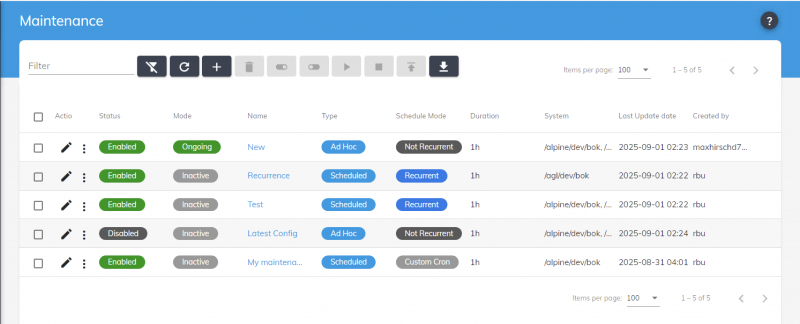
The maintenance settings page displays a table of all defined maintenance periods within the tenant.
The page includes:
- A
'Create' button to define new maintenance periods - Bulk action buttons that appear when items are selected:
'Enable selection' - Enable selected maintenance periods'Disable selection' - Disable selected maintenance periods'Start selection' - Manually start selected maintenance periods'Stop selection' - Manually stop selected maintenance periods'Delete selection' - Remove selected maintenance periods'Duplicate selection' - Copy selected maintenance periods'Export selection' - Export selected maintenance data'Test selection' - Test selected maintenance configurations
- A filter field to search maintenance periods by name
Maintenance Table
The table displays the following information:
| Column | Description |
|---|---|
| Checkbox | Select maintenance periods for bulk operations |
| Actions | Three-dot menu with options: Edit, Delete, Start (if inactive), Stop (if ongoing) |
| Status | Toggle switch showing if the maintenance is 'Enabled' or 'Disabled' |
| Current Mode | Badge showing 'ONGOING' (green) or 'INACTIVE' (gray) |
| Name | The maintenance period name |
| Type | 'AD_HOC', 'SCHEDULED' |
| Schedule Mode | Display of the schedule Mode ('Not Recurrent', 'Recurrent' or 'Custom Cron') |
| Duration | Time in minutes (or “Manual stop” if duration is 0) |
| Target Systems | Number of affected systems (hover shows list) |
| Timezone | Timezone if 'Recurrent' or 'Not Recurrent' |
| Last Updated | Timestamp and user who last modified |
Create/Edit Maintenance
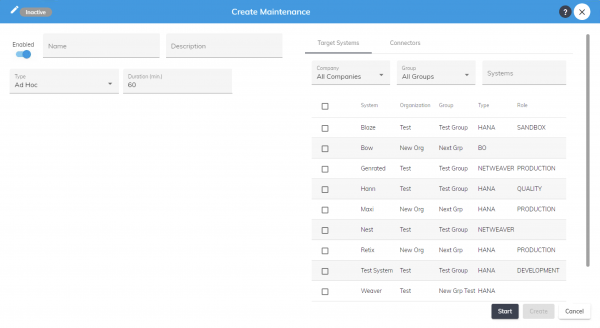
Basic Information
| Field | Description |
|---|---|
| Name | Required text field for the maintenance identifier |
| Description | Optional text area for detailed maintenance information |
| Status | Toggle to enable or disable the maintenance period |
| Mode | Click Start or Stop to activate or deactivate the maintenance |
| Type | Dropdown menu for maintenance type (Ad hoc, Scheduled, Recurrent) |
| Duration | Number input field for maintenance duration in minutes |
| Target system or connector | Two-tab interface with tables for selecting systems and connectors |
Maintenance Type
Dropdown selection:
Ad Hoc
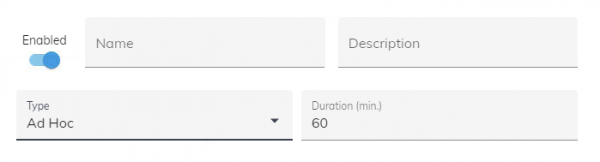
- No schedule configuration
- Maintenance must be manually started and stopped
Scheduled
Not Recurrent
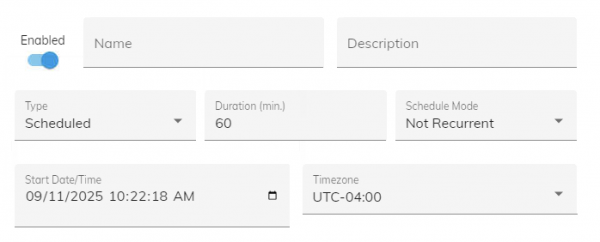
- One-time maintenance window
- Shows date/time picker for
'Start Date and Time' - Shows Optional Timezone dropdown selection
- Example: “December 24, 2025 at 10:00 AM”
Recurrent
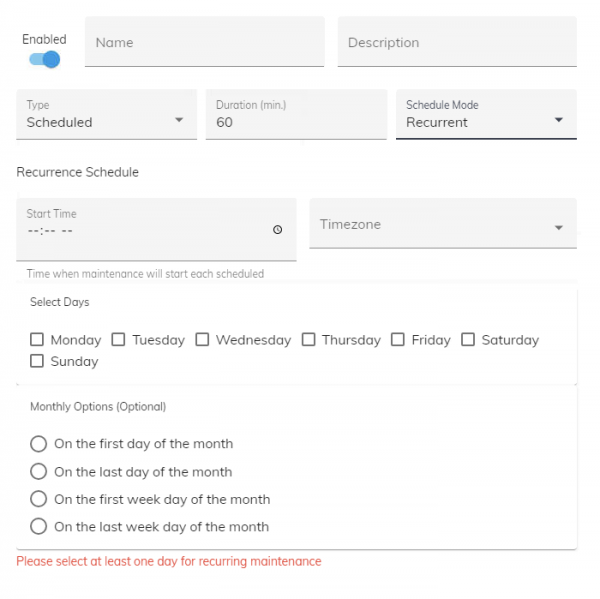
- Repeating maintenance windows
- Opens schedule configuration options (see Schedule Configuration below)
Duration
| Field | Description |
|---|---|
| Duration (minutes) | Number input field. Enter 0 for manual stop required, otherwise maintenance auto-stops after specified minutes |
| Duration Display | Shows calculated time (e.g., “2 hours” for 120 minutes) |
Schedule Configuration
For Recurrent Maintenance
Schedule Type Selection
Weekly Schedule
'Start Time' - Time picker (HH:MM format)'Timezone' - Optional dropdown selection'Days of Week' - Checkboxes for:- ☐ Monday
- ☐ Tuesday
- ☐ Wednesday
- ☐ Thursday
- ☐ Friday
- ☐ Saturday
- ☐ Sunday
- Example display: “Every Monday, Wednesday, Friday at 14:00”
Monthly Schedule
'Start Time' - Time picker (HH:MM format)'Timezone' - Optional dropdown selection'Day Selection' - Radio buttons:- ○ First day of month
- ○ Last day of month
- ○ First weekday of month
- ○ Last weekday of month
- Example display: “First weekday of each month at 09:00”
Custom Cron
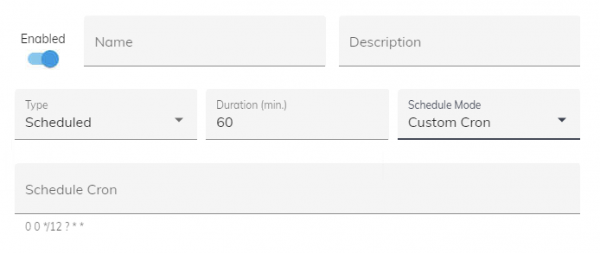
'Cron Expression' - Text field for Quartz cron string'Validation' - Red error message appears for invalid expressions'Help Link' - “View cron syntax documentation”- Example:
0 0 12 ? * SUN *
(Every Sunday at noon)
Schedule Testing

Test panel:
'Test Date/Time' - DateTime picker to select test moment'Test Schedule' button - Validates if maintenance would be active'Result Display':- ✓ Green message: “Maintenance would be ONGOING at selected time”
- ✗ Red message: “Maintenance would be INACTIVE at selected time”
- ⚠ Error message for invalid cron expressions
Target Systems Selection
Systems Selector
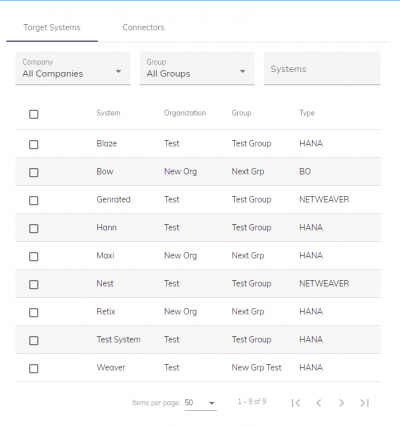
Two-panel selector interface:
Systems (Left Tab)
- Search field to filter systems
- List showing:
- System name
- System organization
- System group
- System type
- Select all checkbox
- Shows count: “Showing X of Y systems”
Connectors (Right Tab)
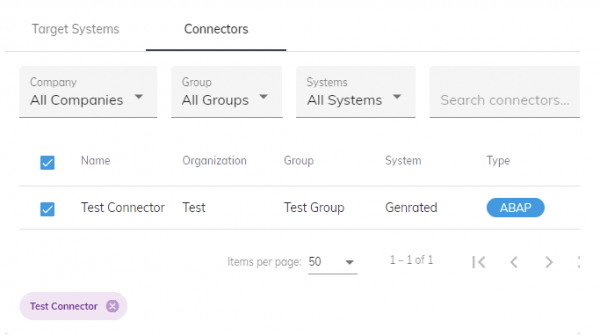
- Search field to filter connectors
- List showing:
- Connector name
- Connector status
- Connector organization
- Connector group
- Connector system
- Connector type
- Select all checkbox
- Shows count: “Showing X of Y systems”
Transfer Controls
'Add +' button - Select system'x Remove' button - Unselect system'Add All »' button - Select all visible systems
Individual Actions
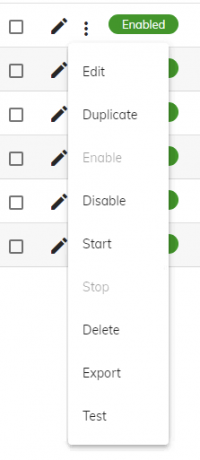

Actions available from the three-dot menu:
Enable/Disable
- Changes the maintenance status
- Disabled maintenances won't trigger automatically
- Shows confirmation: “Maintenance [name] has been enabled/disabled”
Start Maintenance
- Only available when maintenance is INACTIVE
- Immediately activates maintenance mode for all target systems
- Shows confirmation dialog:
- Title: “Confirmation”
- Message: “Are you sure?”
- Buttons: [Ok] [Cancel]
Stop Maintenance
- Only available when maintenance is ONGOING
- Immediately deactivates maintenance mode for all target systems
- Shows confirmation dialog:
- Title: “Confirmation”
- Message: “Are you sure?”
- Buttons: [Ok] [Cancel]
Edit
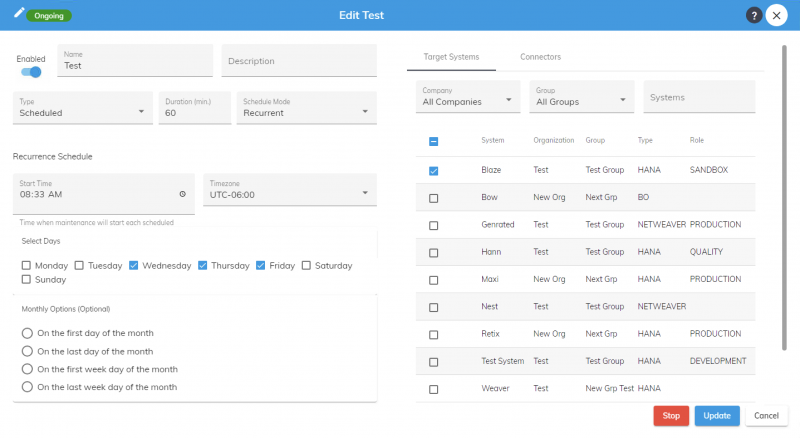
- Opens the maintenance configuration form
- All fields are pre-populated with current values
- Save button updates the maintenance
Delete
- Shows confirmation dialog:
- Title: “Confirmation”
- Message: “Are you sure?”
- Buttons: [Ok] [Cancel]
Bulk Actions
When multiple maintenances are selected:
Bulk Enable/Disable
- Enables or disables all selected maintenance periods
Bulk Start/Stop
- Starts or stops all selected maintenance periods
Bulk Delete
- Shows confirmation dialog:
- Title: “Confirmation”
- Message: “Are you sure?”
- Buttons: [Ok] [Cancel]
Status Indicators
Visual States
| Status | Appearance | Description |
|---|---|---|
| Enabled + Inactive | Blue toggle ON, Gray “INACTIVE” badge | Maintenance is enabled but not currently running |
| Enabled + Ongoing | Blue toggle ON, Green “ONGOING” badge | Maintenance is enabled and currently active |
| Disabled + Inactive | Gray toggle OFF, Gray “INACTIVE” badge | Maintenance is disabled and not running |
Form Validation
| Field | Validation | Error Message |
|---|---|---|
| Name | Required, Unique | “Maintenance name is required” / “Name already exists” |
| Start Date | Future date for scheduled | “Start date must be in the future” |
| Duration | Non-negative number | “” |
| Cron Expression | Valid Quartz syntax | “Invalid cron expression: [details]” |
| Target Systems or Target connectors | At least one selected | “Select at least one target system or connector” |
| Schedule Days | At least one day for weekly | “Select at least one day of the week” |